
Welcome to Core's "Decoding Core" four-part blog series, which are targeted at providing a comprehensive overview of Core, its purpose, and its future.
In this part IV of four-part blog series, let's walk through the basic process of building a simple full stack dApp for storing and retrieving data on Core. It's different from parts I-III, which were focused primarily on concepts, but by the end, you should have everything you need to integrate into the Core ecosystem and participate in building BTCfi.
What we are building
In this blog, we'll develop a simple storage decentralized application (dApp) using React.js and Ethers.js that stores and retrieves data from a smart contract deployed on the Core blockchain. The dApp's frontend is further capable of displaying the retrieved data as well to the users. The dApp's full code is available on GitHub in the dApp-tutorial repository.
Learning Takeaways
This tutorial will help you gain knowledge on the following learning points:
MetaMask Wallet connectivity to Core Testnet;
Smart contract development and deployment on Core Testnet;
Front-end integration with the smart contract using Ethers.js library;
Read data from a smart contract;
Write data to a smart contract;
Software Prerequisites
Setting Up the Project
Other than the software prerequisites for this tutorial, it is also required from the reader to at least have a passing familiarity with using CLI, Git, and Reactjs. Also, make sure that you have Node.js installed on your machine to avoid any error while running this tutorial. Head over to the official Node.js website to get the latest stable version.
**Step #1 **- Create project directory
Run the following commands to create a new directory for your project and navigate into it.
mkdir storage-dapp-tutorial
cd storage-dapp-tutorial
For this project, we will be using Hardhat and Waffle for compiling, deploying and testing the smart contract for our dApp. Run the following commands to install these tools.
npm init - yes
npm install - save-dev hardhat
npm install - save-dev chai @nomiclabs/hardhat-wafflenpm install - save-dev hardhat
npm install - save-dev chai @nomiclabs/hardhat-waffle
**Step #3 **- Initialize Hardhat project
To initialize a Hardhat project run the following command:
npx hardhat
Note: As we will be using Waffle for testing smart contracts in this project, make sure to select No for the option "Do you want to install this sample project's dependency with npm (@nomicfoundation/hardhat-toolbox)? (Y/n)"
Once this project is initialized, you'll find the following project structure:
dapp-tutorial.
| .gitignore
| hardhat-config.js (HardHat configuration file)
| package-lock.json
| package.json
| README.md
|
|+ - -contracts (For Solidity Smart Contracts)
| Lock.sol
|
|+ - -ignition (Scripts in previous versions, contains config files that specify how smart contracts should be deployed)
| \ - -modules
| Lock.js
|
|+ - -node_modules
|
|+ - -test (For writing and Running Tests)
| Lock.js
|
Step #4- Install and Configure Metamask Wallet
{"PrivateKey":"you private key, do not leak this file, do keep it absolutely safe"}
Note: Do not forget to add this file to .gitignore file in the root folder of your project so that you don't accidentally check your private keys/secret phrases into a public repository. Make sure you keep this file in an absolutely safe place!
Copy the following into your hardhat.config.js file
/**
@type import('hardhat/config').HardhatUserConfig
*/
require('@nomiclabs/hardhat-ethers');
require("@nomiclabs/hardhat-waffle");
const { PrivateKey } = require('./secret.json');
module.exports = {
defaultNetwork: 'testnet',
networks: {
hardhat: {
},
testnet: {
url: 'https://rpc.test.btcs.network',
accounts: [PrivateKey],
chainId: 1115,
}
},
solidity: {
compilers: [
{
version: '0.8.19',
settings: {
evmVersion: 'paris',
optimizer: {
enabled: true,
runs: 200,
},
},
},
],
},
paths: {
sources: './contracts',
cache: './cache',
artifacts: './artifacts',
},
mocha: {
timeout: 20000,
},
};
Note: At the moment, Core's EVM matches version Paris and does not support the deployment and verification of smart contracts of version 0.8.20^ with newer EVM version settings. Core is upgrading to the latest version of EVM and is projected to finish by early of Q3 2024. For more details refer here.
Writing Smart Contract
- Navigate to the contracts folder in the root directory of your project.
- Delete the Lock.sol file; create a new file Storage.sol and paste the following contents into it.
// SPDX-License-Identifier: GPL-3.0
pragma solidity >=0.7.0 <0.9.0;
/**
*@title Storage
*@dev Store & retrieve value in a variable
*/
contract Storage {
uint256 number;
/**
*@dev Store value in variable
*@param num value to store
*/
function store(uint256 num) public {
number = num;
}
/**
*@dev Return value
*@return value of 'number'
*/
function retrieve() public view returns (uint256){
return number;
}
}
Explanation
The Storage contract is a simple smart contract that demonstrates how to store and retrieve a value using a Solidity programming language.
The Storage contract consists of a state variable to hold the value and two functions to update and read this value.
The store function allows any user to set the value, while the retrieve function allows any user to read the current value.
This contract can be useful for understanding the basics of state variables and function visibility in Solidity.
Here's a detailed breakdown of its components and functionality:
Storage Contract Components
1- State Variable:
number: A uint256 variable that is used to store the value.
Storage Contract Functions
1- Store Function:
store(uint256 num) public: this function allows users to store a new value in the number variable. This function takes a single parameter, num, which is the value to be stored. The function updates the number variable with the provided value.
Visibility: The function is marked as public, meaning it can be called by any user or contract.
State Change: This function modifies the state of the contract by updating the number variable.
2- Retrieve Function:
retrieve() public view returns (uint256): this function returns the current value stored in the number variable. This function does not take any parameters and returns a uint256 value.
Visibility: The function is marked as public, meaning it can be called by any user or contract.
View: The function is marked as view, indicating that it does not modify the state of the contract. It only reads the state.
Return Value: The function returns the value of the number variable.
Compiling Smart Contract
To compile the Storage smart contract defined in the Storage.sol from the root directory run the following command:
npx hardhat compile
Deploy and Interact with Smart Contract
**Step #1 ** - Before deploying your smart contract on the Core Chain, it is best adviced to first run a series of tests making sure that the smart contract is working as desired. Refer to the detailed guide here for more details.
Step #2 - Create a scripts folder in the root directory of your project. Inside this folder, create a file deploy-and-call.js; paste the following script into it.
Step #3 - Make sure your MetaMask wallet has tCORE test tokens for the Core Testnet. Refer here for details on how to get tCORE tokens from Core Faucet.
const hre = require("hardhat");
async function main() {
const Storage = await hre.ethers.getContractFactory("Storage");
const storage = await Storage.deploy();
await storage.deployed();
console.log("Storage contract deployed to:", storage.address);
console.log("call retrieve():", await storage.retrieve())
console.log("call store(), set value to 100")
const tx = await storage.store(100)
await tx.wait()
console.log("call retrieve() again:", await storage.retrieve())
}
// We recommend this pattern to be able to use async/await everywhere
// and properly handle errors.
main().catch((error) => {
console.error(error);
process.exitCode = 1;
});
Step #4 - Run the following command from the root directory of your project, to deploy your smart contract on Core.
npx hardhat run scripts/deploy-and-call.js
If succesfully deployed, you will get the following output
npx hardhat run scripts/deploy-and-call.js
Storage contract deployed to: 0x48F68BF4A1b1fE6589B9D0a5ad0dF0520582edA2
call retrieve(): BigNumber { value: "0" }
call store(), set value to 100
call retrieve() again: BigNumber { value: "100" }
Make sure to save the Address of Storage Contract at which is deployed, as obtained above, this will be used for interacting with smart contract from the dApp's frontend.
Congratulations! You have successfully learned how to create, compile, and deploy a smart contract on the Core Testnet using the Hardhat. The next step is to interact with this deployed smart contract using a user-interface (UI) or a frontend.
Interacting with Smart Contract through Frontend
Step #1- Clone the Dapp-Tutorial GitHub Repository
From the directory where you want to build this project, run the following command to clone the GitHub repository for the dApp tutorial. This will create a local copy on your machine.
Rename the folder of cloned repo to frontend. Navigate into this directory by running the following command: cd frontend
Step #2 - Install the Dependencies
From the frontend directory, run npm install in order to install required dependencies for running this project smoothly.
Step #3 - Understanding UI Code
The application's key blockchain logic is implemented in App.tsx
App.tsx (Wallet): logic for connecting to application to MetaMask wallet.
App.tsx (Store): logic to write data to the Storage smart contract.
App.tsx (Retrieve): logic to read data from the Storage smart contract.
Step #4 - Adding Smart Contract Details
Copy the Storage.sol file from the contracts folder in the root of your project and paste it into the frontend/src/contracts folder.
Copy the address of the Storage smart contract as obtained in the section above.
Paste this into Line 10 of App.tsx.
const contractAddress =
'0x48F68BF4A1b1fE6589B9D0a5ad0dF0520582edA2'
Additionally, we'll need the ABI metadata to interact with the contract from our dApp. From the artifacts/contracts folder in the root of your project. Copy the Storage.json file and save it to the frontend/src/contracts folder.
Step #5 - Running the Application
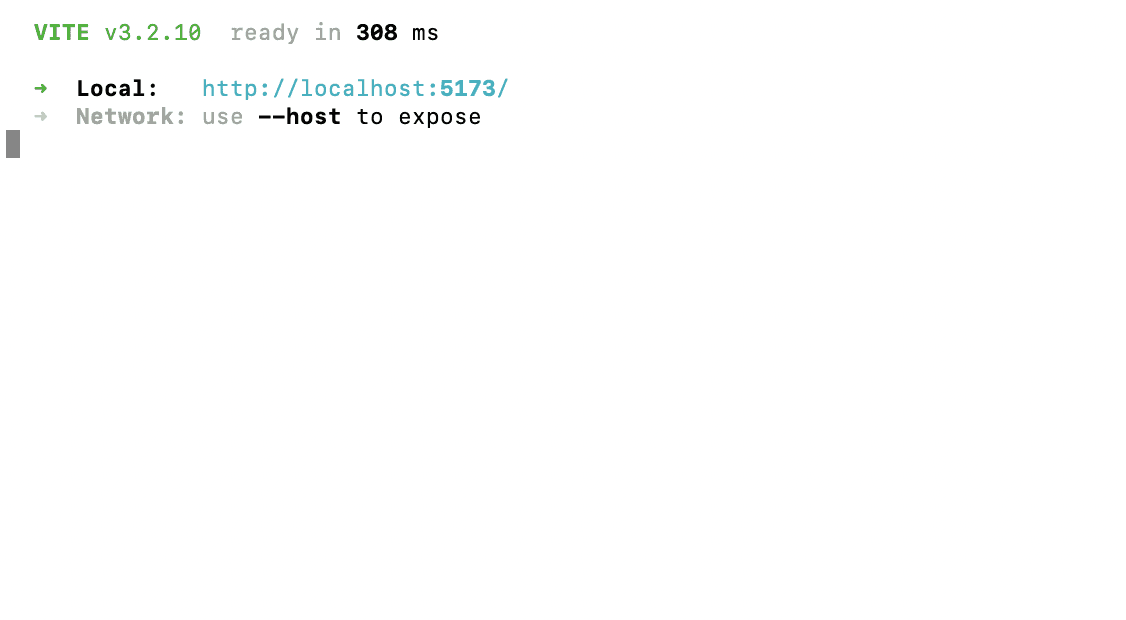
To cross-check if everything is working fine, run the application using the command
npm run dev, this will serve the application on your localhost.
0_ZtTQQoRWi-0bfrqz.png
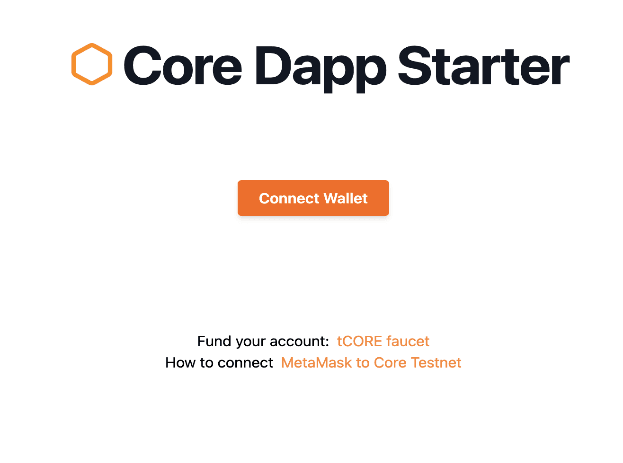
Navigate to http://localhost:5173 on your browser and that should take you to a page simialr as shown below.
0_hQqsrZOQ3y_m5z0i.png
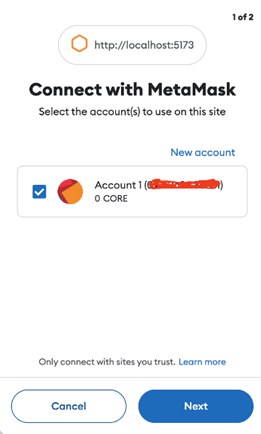
Click on the Connect Wallet button, to connect your MetaMask wallet to the dapp and start using it. When clicked, you will get a MetaMask notification, asking you to allow the dapp to connect to your wallet, click Connect/Next.
0_2rbqKBXR7vk40iFL.png
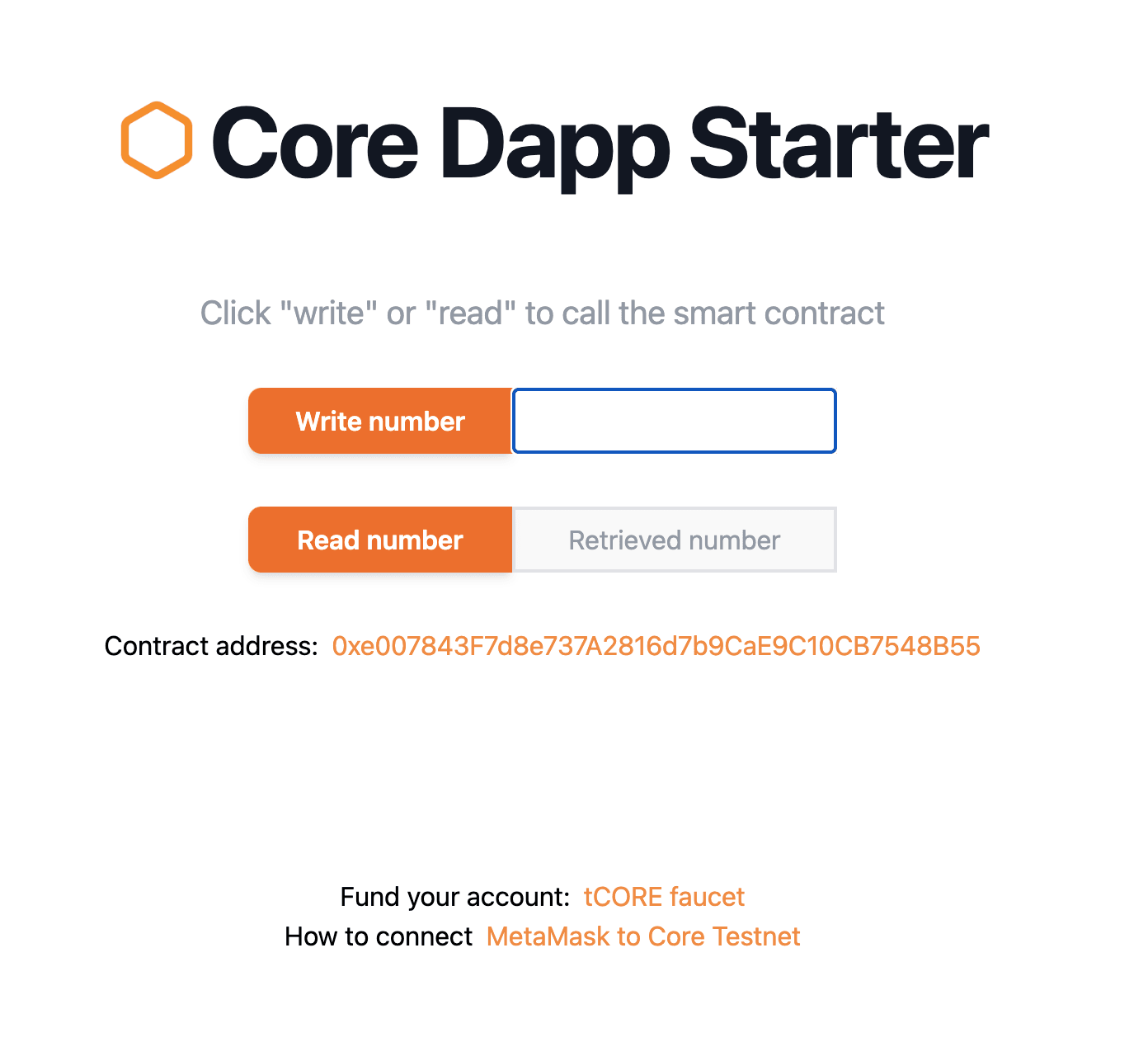
Once your wallet is connected to the dapp website, the UI will display write number and read number options as shown below.
0_B7FQxy7qMABXYmAd.png
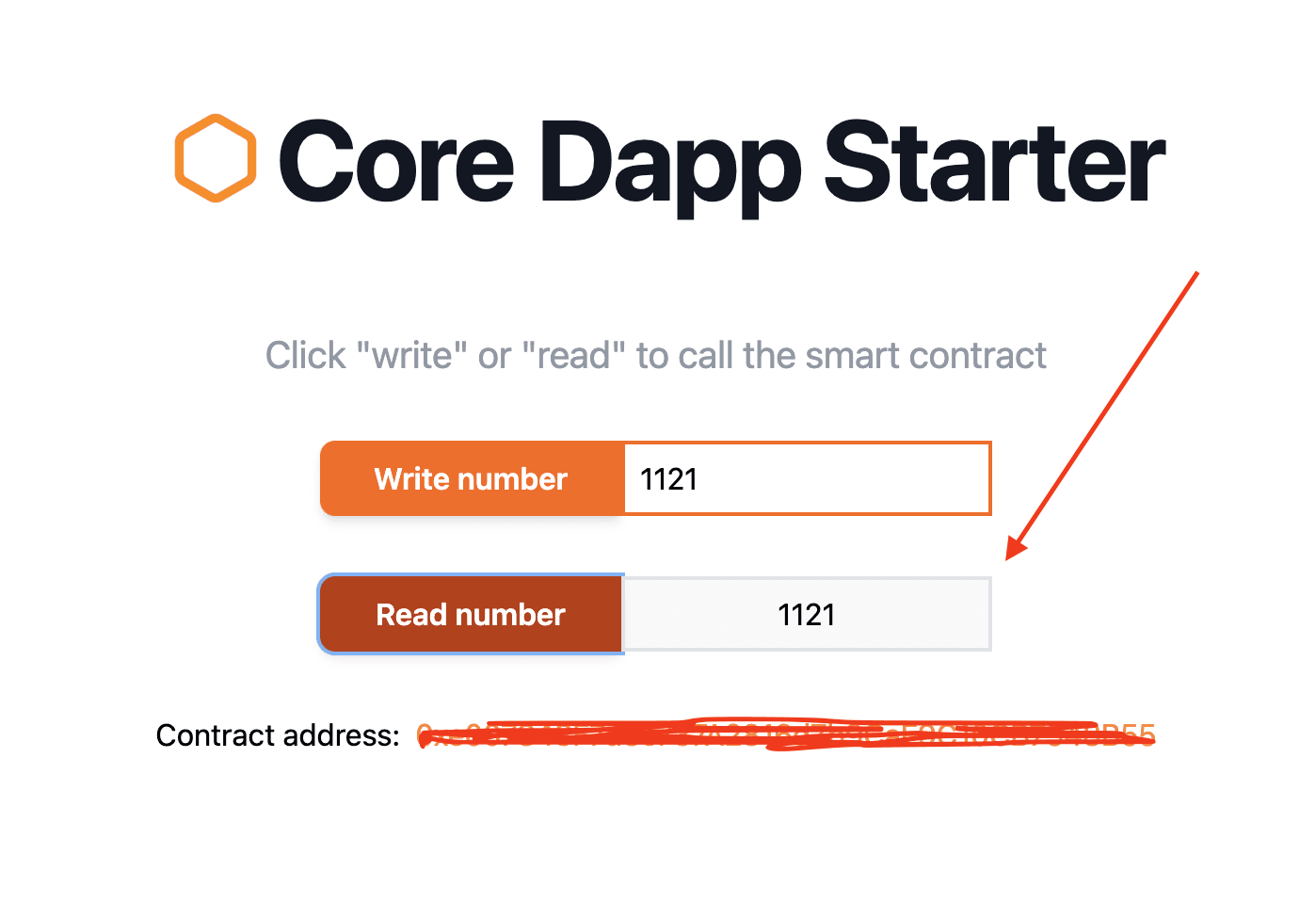
This UI is the frontend of our dApp which will be used to communicate with the deployed Storage smart contract. It has two buttons, one that lets you write a number (i.e. store it) in the smart contract, and one that lets you retrieve it. Let's give that a whirl by providing the contract with a number and clicking "Write number".
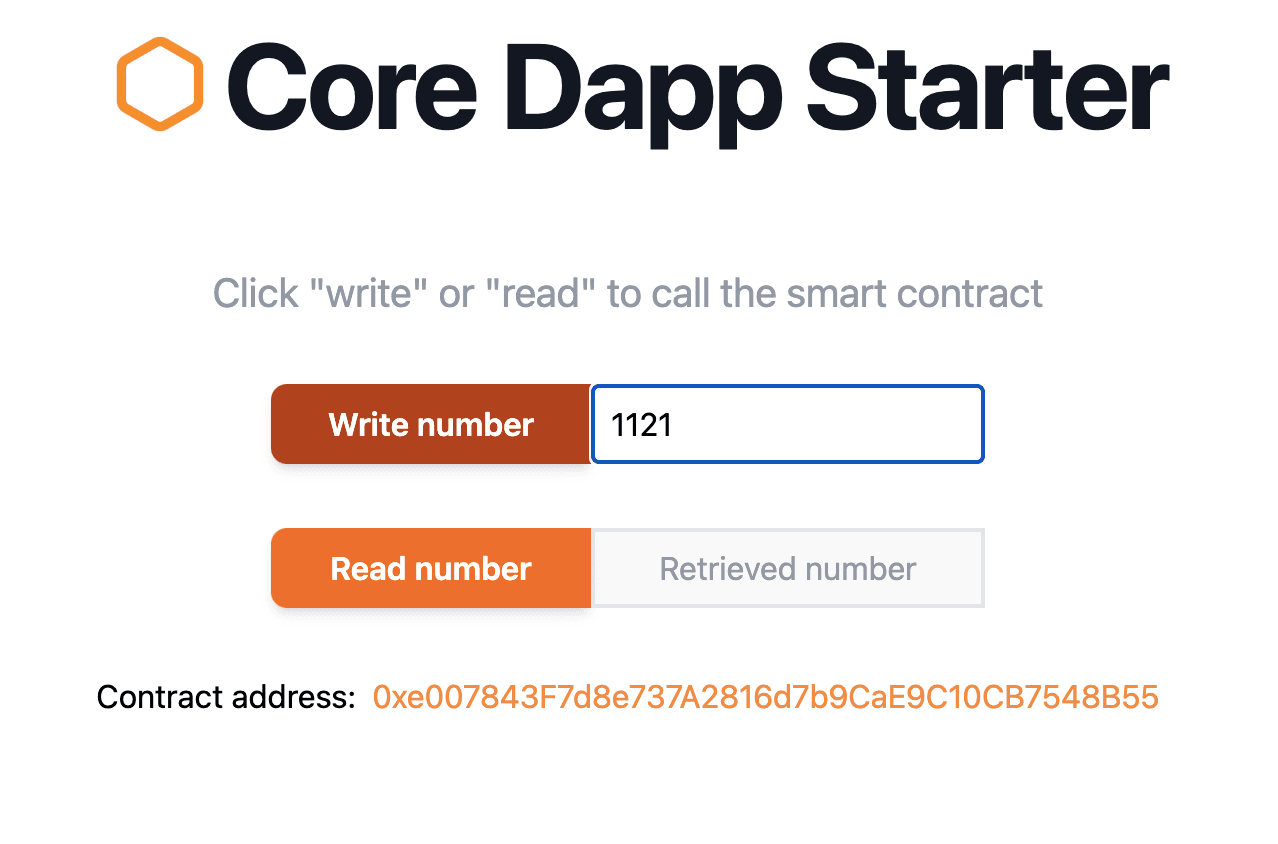
0_htsAqbvOwPOy_S_J.png
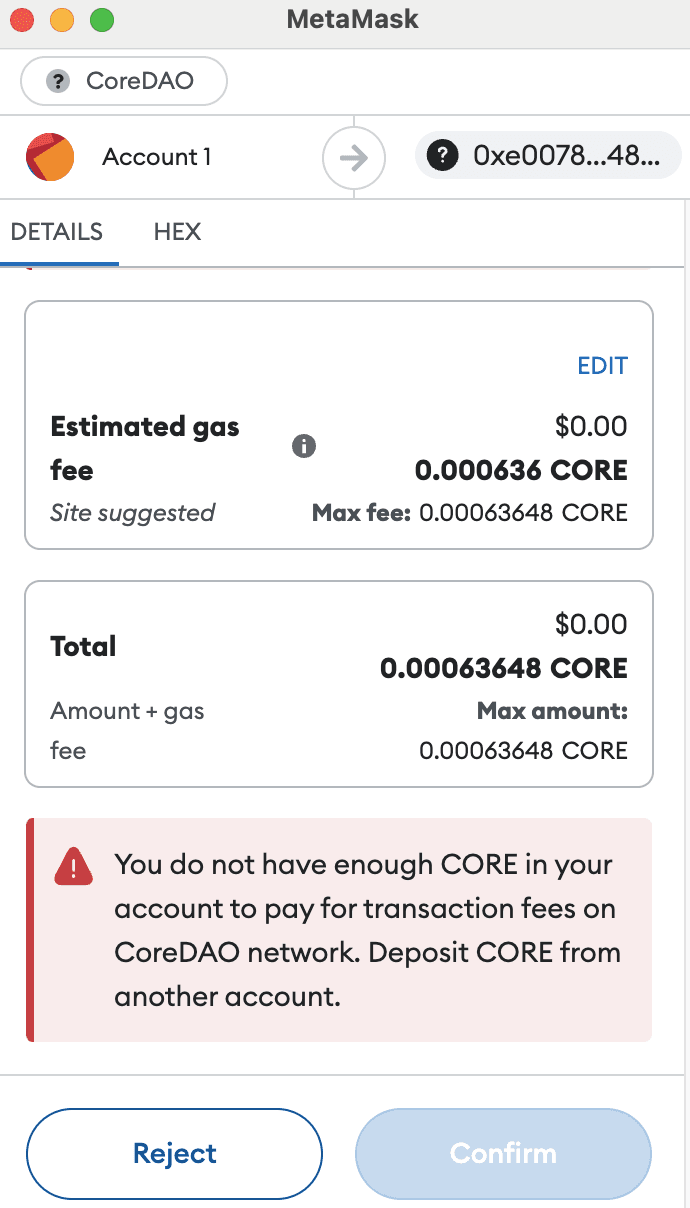
As a result of this, as this calls the store function which is responsible for changing the value of a state variable number and storing this value on the blockchain, this requires some gas fees which will be paid in the native coin of the Core Testnet, i.e., tCORE. You will receive a notification from MetaMask asking you to confirm the transaction. Make sure to get some tCORE from the testnet faucet or else your transaction will not pass through as shown below.
0_Wo3Ai68dbGIXLO-A.png
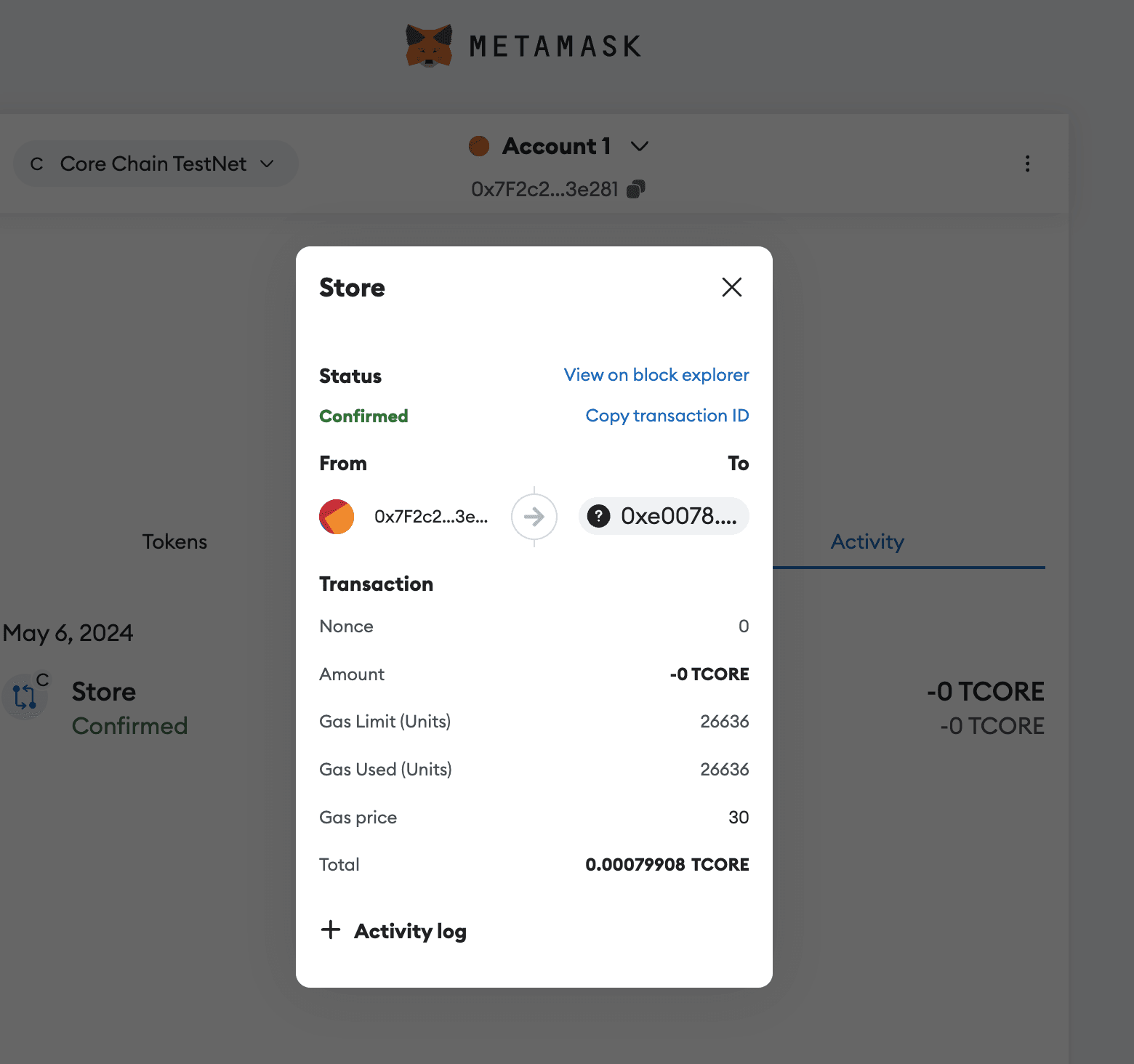
In the Activity tab of MetaMask wallet, you can also click 'Store' to see more details about the transaction.
0_HOCKZc4APdenywBg.png
Of course, we can also read the number back, and verify that our dApp is working as intended:
0_fpsPHfVyPVQQvRRF.png
Congratulations! You have successfully learned how to build a simple frontend and integrate using Ethers.js to communicate with a smart contract deployed on the Core Chain Testnet.
Conclusion
If you've made it this far, you've successfully cloned the dApp tutorial repo, installed the required dependencies, hooked up your MetaMask wallet, funded it with tCORE, stored and retrieved a number from the smart contract, and carefully combed through the code to understand how all of this is accomplished. And, if you've read all the other parts in this series, you should have an awful lot of context around Core.
Ready to embark on the innovative journey of Web3 with Core? We're looking forward to seeing what you build!